


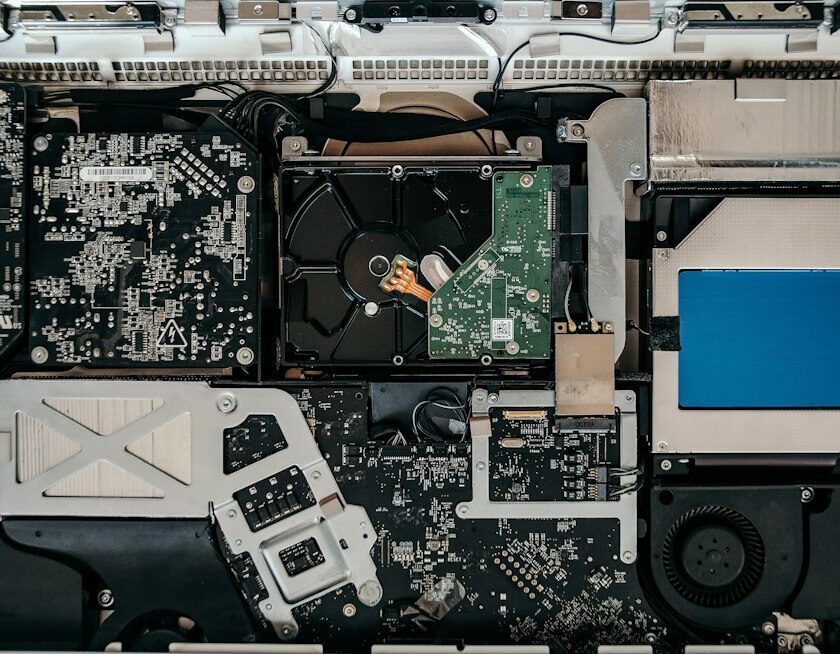
If you’re staring at a dead or flaky laptop and wondering whether laptop motherboard repair is possible at the bench, you’re in the right place. This guide collects safe, repeatable workflows used by experienced board technicians and turns them into clear steps you can follow at home or in a small shop. You’ll learn what to test first, which tools actually help, how to interpret power-rail behavior, when to walk away, and how to validate a successful fix without risking a comeback.
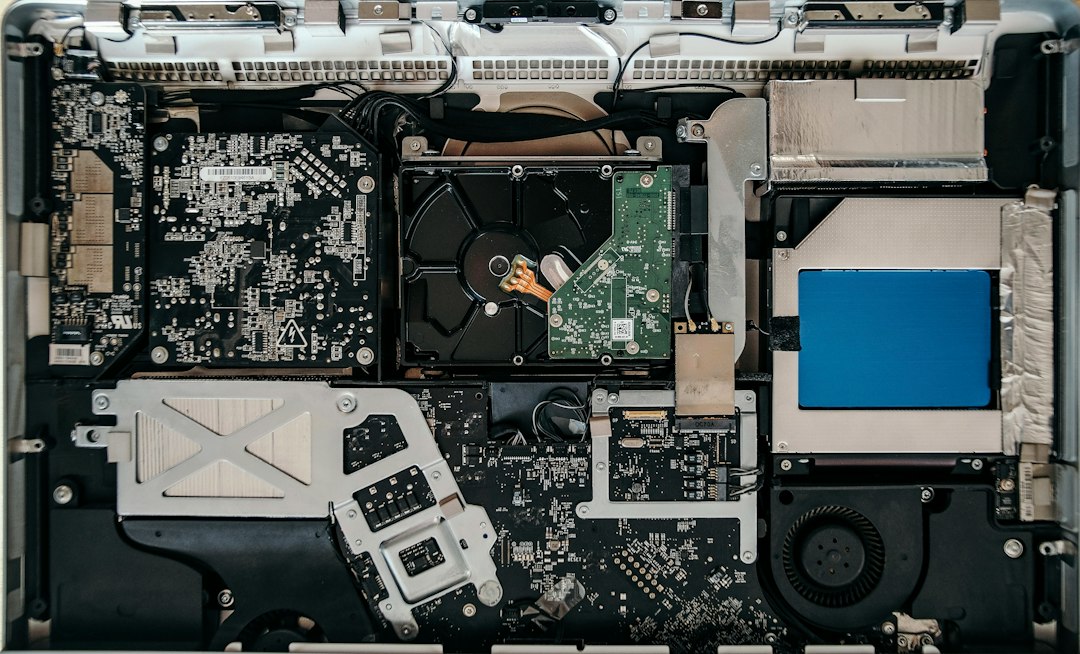

How a laptop motherboard works in practice (why it matters for repair)
Every modern laptop motherboard is a layered puzzle: power management, CPU/PCH or SoC, memory, storage, display, and I/O all live on a tight board with dozens of rails and hundreds of test points. When something fails, symptoms cascade. Understanding the roles of a few core subsystems makes troubleshooting faster and safer.
Start with power delivery. From the DC jack or USB‑C PD controller, primary protection lines feed a sequence of buck converters and LDOs. These generate standby rails first (often labeled 3V/5V_ALW or S5), then wake rails, then the high-current CPU and GPU stages. Embedded controllers (ECs) sit near the keyboard connector and need stable standby power plus a clock to orchestrate power‑on. If standby isn’t healthy, nothing else will be.
Next are the brains. Intel “PCH” era systems combine chipset functions with the CPU; AMD APUs integrate graphics and memory controllers. Ball grid array (BGA) packages solder directly to the board, which is why physical stress, overheating, and contamination can create intermittent faults that look like software problems.
Peripheral buses (PCIe, USB, SATA, NVMe) ride on tight impedance traces. Shorted ports, damaged ESD arrays, or corroded connectors can hold a rail down or crash the EC. Batteries and charging ICs add another layer: a bad pack or a shorted MOSFET can mimic a dead board. With this mental map, you can test logically instead of guessing.
Symptoms that point toward board-level faults
Many laptop problems live above the board (battery, RAM, SSD, software). Before you uncap the flux, confirm whether symptoms suggest a board-level issue:
- Dead on arrival, no lights at all: Could be DC‑in fuse, input MOSFETs, shorted primary rail, or blown ESD diode at the jack/port.
- Charger LED blinks or shuts off when connected: Often indicates a hard short on a primary rail. A bench PSU may current‑limit immediately.
- Fans spin momentarily then stop: EC begins a power sequence but a rail fails a power‑good check. Look at S5 → S3 → S0 transitions.
- Boot loops, sudden resets under load: Intermittent power rail instability, cracked inductor, failing high‑side MOSFET, or overheating VRM.
- USB‑C charge on one side only: Damaged PD controller or ESD array near the non‑working ports. Check for burnt arrays close to connectors.
- Picture on external display but not the panel: Panel power rail or backlight driver failure, torn eDP cable, or shorted ESD parts on the eDP lines.
- Random shutdowns when flexed, or after liquid spill: Corrosion under BGA or keyboard/EC area, partially corroded vias near power rails.
- Draws battery but not AC power (or vice versa): Charging IC gate drivers, DC‑in MOSFETs, or sense resistor issues.
None of these observations prove a specific part, but they tell you where to look. They also help you avoid replacing healthy modules while a tiny blown TVS diode near a port is the real culprit.
Planning your laptop motherboard repair safely
Board‑level work rewards preparation. A tidy, grounded bench and a repeatable routine reduce risk and speed up diagnosis. Build a plan around the fault you see and the tools you have, and set limits before you begin.
- ESD control: Use a grounded mat and wrist strap. Keep humidity moderate to reduce static buildup. Store boards in anti‑static bags between sessions.
- Thermal safety: If you use hot air, practice on donor boards first. Mask plastics with high‑temperature tape. Preheat gently; rushing heat causes pad lift.
- Data first: If the laptop still boots sporadically, back up user data immediately before deeper work. Board failures can worsen during testing.
- Define success: Decide what outcomes are acceptable. Replacing a charred DC jack may be reasonable; attempting a multi‑layer trace repair under a BGA package may not be, depending on your equipment.
- Document: Photograph the board before and during work. Note measured rails and current draw at each step. Documentation turns guesswork into learning.
Finally, set a timeout. After a couple of hours without traction—especially on liquid damage or intermittent power—take a break or escalate. Fresh eyes save boards.
Tools and parts that actually help (and what to skip)
Good tools don’t fix boards by themselves, but the right kit shortens paths to answers and keeps rework clean. Here’s a pragmatic list used by working technicians.
- Adjustable bench power supply with current limiting and readout (0–20 V, 3–5 A). Lets you inject voltage into shorted rails and read current draw patterns.
- Quality multimeter with continuity beep, diode mode, and low‑ohms accuracy. A sharp probe set and micro‑grabbers help on tiny test pads.
- Hot‑air rework station with precise temperature and airflow. Use medium nozzles and consider preheating plates for large ground planes.
- Fine‑tip soldering iron (T12/JBC type tips), quality 63/37 solder, no‑clean flux, flux pen, and solder wick. Fresh tips matter more than brand debates.
- Microscope (even a 10–20× stereo scope) or at least a strong inspection camera. You can’t fix what you can’t clearly see.
- Thermal camera or IR thermometer for spotting hot spots during power injection. A drop of isopropyl on the rail can also reveal the short by flashing dry at the hot component.
- Schematics and boardviews where legally available. Knowing rail names (PP3V3, +5VALW), coil labels (PLxx), and test points cuts hours of tracing.
- BIOS/EC programmer (CH341A or better) and SOIC clips for corrupt firmware cases. Dump, verify, and write known‑good images safely.
- Spare parts: DC jacks, common charger ICs, AOZ/RT charging controllers for popular models, ESD arrays, fuses, and a set of common MOSFETs/inductors.
- Consumables: Isopropyl alcohol, distilled water for board washing post‑spill, high‑temp Kapton tape, UV solder mask, fine wire for jumpers.
Nice-to-haves: a USB‑C PD trigger to request specific voltages, a current probe, a secondary bench meter for logging, and a variable fan for gentle airflow to cool hotspots during burn‑in. Things to skip: miracle fluxes that claim to fix anything, questionable “reflow ovens” for laptops, and no‑name chargers used as bench supplies. Keep it simple, reliable, and measurable.
Checks to run before any soldering iron work
Half of successful board work is confirming what not to do. Non‑invasive checks often reveal simple fixes or rule out costly adventures.
- Try a known‑good charger (brand‑correct wattage). USB‑C systems can be picky about PD negotiation; some won’t power rails without the right profile.
- Remove externals: SSD, RAM modules, Wi‑Fi card, keyboard, and touchpad. Inspect for bent pins or corrosion. Boot boards on a bench with only essentials.
- Battery sanity: Disconnect the pack and try on AC only. Conversely, try on battery only. A shorted MOSFET can block one path while the other still works.
- Reset procedures: Some models wake only after a long power button press or a specific key combo post‑fault. Look up the vendor’s embedded controller reset.
- Visual inspection: Under magnification, look for darker areas, cracked inductors, missing resistors near coils, or “wet looking” residue under chips.
- Measure standby rails: With AC connected and the board “off,” check common ALW rails and the EC supply. No 3.3 V or 5 V usually means a primary problem.
- Check shorts to ground: In diode or ohms mode, probe major rails at inductors. Very low resistance (near 0 Ω) suggests a short; medium values are often normal for CPU/GPU rails.
If the easy items pass and you still have dead or unstable power, move to a structured board workflow. Your earlier notes will guide the order of tests.
laptop motherboard repair workflow: step by step
This workflow aims for signal, not noise. Follow it in order and stop the moment you gain a strong, testable lead.
- Baseline current draw: Power the board from a bench PSU through the DC‑in path (respect polarity and maximum voltage). Start at the adapter’s normal voltage and watch current. A hard short shows as immediate current limit; zero draw means an open path or dead primary rails; a small, steady draw might be EC standby.
- Primary protection check: Verify input fuse continuity, DC‑in MOSFET orientation (body diode test), and presence of adapter detect signals near the charge IC. If the adapter LED goes out on plug‑in, isolate the path by lifting the input coil (if practical) or measuring resistance inward from the jack.
- Standby rails: Measure 3.3 V and 5 V ALW rails at their inductors. If missing, focus on those buck converters: check enable pins, VIN presence, and shorted output caps. Replace obviously shorted output capacitors or burnt inductors before moving deeper.
- EC alive?: Look for a stable supply on the EC VCC pin and a 32.768 kHz crystal oscillation (some meters with frequency can confirm). If the EC lacks power or a clock, the sequence can’t start. If firmware corruption is suspected, read and re‑flash with a verified image.
- Power‑on sequence: Press the power button and see which rails wake. Many boards label power‑good (PG) signals; follow PG nets to find the stage that fails. If a rail pulses and drops, suspect a short down the line or a protection trigger.
- Find shorts with injection: For a confirmed shorted rail, inject a low, safe voltage (e.g., 1 V) with current limit and search for heat. A thermal camera, a freeze spray, or a drop of isopropyl can reveal the culprit. Replace the offending capacitor, ESD diode, or IC as needed.
- Connector zones: Check USB‑C, HDMI, eDP, and audio areas for burnt or cracked ESD arrays. A single failed array can pull a rail down. Replace arrays as a unit; they’re inexpensive and common failures.
- Charging path sanity: Inspect the charger IC, DC‑in MOSFET gates, and current‑sense resistors. Confirm gate drive with a scope or by measuring expected gate‑to‑source voltages. Replace obviously charred DC jacks and cracked sense resistors first.
- Thermal and VRM stress: If the board boots but crashes under load, test VRM temperatures. Replace cracked inductors and suspicious high‑side MOSFETs. Re‑paste the CPU/GPU, clean dust from heatsinks, and verify fans run at expected speeds.
- Firmware last: When rails and hardware look good but behavior stays odd (e.g., keyboard works but power button doesn’t, or sleep resumes fail), dump BIOS/EC firmware, compare images, and write a known‑good version. Always back up the original.
At each step, retest from the top of the sequence. You want to avoid compounding changes, and you want the shortest path from symptom to stable board.
Common failure zones and realistic fixes
Not every board fault is a multi‑hour puzzle. Some patterns repeat across brands and models. Here are areas where careful inspection often pays off:
- DC jack and input protection: Physical stress loosens center pins or cracks solder joints. Replace the jack and inspect the fuse and input MOSFETs. If a TVS diode near the jack is shorted, remove and replace it; the symptom is a charger LED that flickers or shuts off.
- USB‑C charge ports: Water ingress or cable yanks damage PD controllers and ESD arrays. If one side charges and the other doesn’t, compare the parts near each port. Replace burnt arrays; swap the PD controller only after confirming proper rail presence.
- Charging IC & battery hand‑off: Systems that run on battery but not AC (or vice versa) often have a failed gate driver or a cracked current‑sense resistor. Verify gate voltage behavior and continuity across sense resistors before replacing the controller.
- Shorted buck outputs: A single ceramic capacitor on a major rail can fail short. The board goes dead, the charger blinks out. Low‑voltage injection and a thermal glance find it in minutes. Match capacitance and voltage ratings when replacing.
- Backlight drivers & panels: “Boots with dark screen” is common. Check panel power and backlight rails. If the panel lights with an external source, trace the driver IC output and the inductor/diode nearby. Replacing tiny boost diodes or driver chips is achievable with mid‑level hot air skills.
- Liquid damage under the keyboard/EC: Corrosion creeps under conformal coating and wicks alongside BGA balls. Thorough cleaning with distilled water and isopropyl, gentle heat, and targeted replacement of greened resistors or arrays can restore function if copper isn’t gone.
- Loose heatsinks and VRM stress: Fans packed with dust cook VRM components. After cleaning, replace any discolored inductors or MOSFETs, renew thermal paste, and verify fan control in firmware.
What about reflowing big BGAs like CPUs or discrete GPUs? In many consumer laptops, large BGAs failing at the solder interface is less common than internet lore suggests. “Quick reflows” often return briefly and fail again because the root cause is underlying heat or cracked substrates. If you commit to a BGA repair, plan for proper reballing and thorough thermal remediation, not a heat‑gun hail mary.
Three illustrative board repair case studies
Case studies make the workflow concrete. These are representative scenarios that small shops and DIYers encounter frequently.
Case 1: USB‑C side A doesn’t charge, side B does
Symptoms: The battery drains unless the cable is on the right‑hand port. On the left, the charger LED blinks and the adapter negotiates then drops. Visual inspection shows faint charring around an ESD array near the left port.
Process: Remove the array and re‑measure the rail; the short disappears. Replace the array with an identical part and clean the flux. Inspect the PD controller pins for collateral damage—none found.
Outcome: Both ports negotiate PD and charge. Burn‑in at 20 V, 3 A for an hour passes. Lessons: Arrays are cheap, fast swaps; don’t jump to replacing PD controllers first.
Case 2: Dead board after coffee spill
Symptoms: No lights, no current draw; corrosion visible under the keyboard area and near the EC. A diode‑mode check shows near‑short on a 3.3 V rail by the EC.
Process: Disassemble completely. Wash the board with distilled water, scrub with a soft brush, rinse with isopropyl, and dry thoroughly. Under the microscope, two greened resistors and a corroded ESD array are found. Replace them, re‑measure rails, and the short clears. Standby rails return.
Outcome: Board boots to BIOS. Full cleaning plus a few passives restored function. Lessons: Cleaning isn’t optional after liquid damage; “spot fixes” leave conductive residue and recurring issues.
Case 3: Random shutdown under load
Symptoms: Laptop starts and idles fine but powers off within 3–5 minutes of gaming or stress testing. Thermal paste looks dry; VRM inductors show slight discoloration.
Process: Re‑paste CPU/GPU, remove dust from heatsink, replace one cracked inductor and the companion high‑side MOSFET in the CPU VRM. Confirm MOSFET gate behavior and temperatures under load.
Outcome: Stable operation through 2 hours of CPU/GPU stress. Lessons: Not every “board” fault is exotic; thermals and VRM components are routine maintenance items in hard‑used laptops.
When to pause, quote, or escalate
A successful repair isn’t just soldering skill—it’s judgment. Know when to stop and propose alternatives:
- No standby rails after confirming input path: If multiple primary rails are missing and there’s evidence of extensive corrosion or burnt internal layers, sourcing a donor board or a board swap may be wiser.
- Cracked substrate or torn pads under major BGAs: These rarely hold up long‑term without professional reballing equipment and experience.
- BIOS/EC firmware mismatches without known‑good images: Don’t blindly flash random files. Gather the exact model and revision, read the current image, and only proceed with verified firmware.
- Escalating risks: If each step increases risk without adding new information, reassess. Measuring, documenting, and quoting for professional help is a valid outcome.
If you decide to pass the job on, share your notes and photos. Clear records help the next technician succeed and make you look professional to the owner.
Post‑repair validation and burn‑in
Repairs don’t end when the power LED turns on. Validate methodically to avoid comebacks.
- Functional sweep: Keyboard, trackpad, Wi‑Fi, Bluetooth, USB ports, SD reader, audio, webcam, and display brightness. Try both AC and battery power. Confirm charging and discharging behavior.
- Thermal checks: Log CPU/GPU temperatures at idle and load. Ensure fans respond. Look for hotspots near VRMs and the charging path.
- Memory and storage: Run a memory test and a quick storage health check. Unstable rails often show up here first.
- Sleep and resume: Close/open lid cycles, short/long sleeps, and hibernation if supported. Power‑sequence faults often appear during transitions.
- Burn‑in: A couple of hours of balanced load (CPU, GPU, disk, and network) while watching current draw and temperatures. Intermittent faults often reveal themselves here.
Once everything passes, finalize with a clean reassembly, fresh thermal paste if you removed the heatsink, and a last cable seating check. Many “repairs” fail because a fan or panel cable wasn’t fully latched.
Maintenance habits that reduce repeat failures
You can’t control component aging, but you can lower everyday stress on a laptop’s motherboard. Share these habits with owners—or adopt them yourself:
- Keep vents clear: Clean dust every few months. Heat is the enemy of VRM parts and solder joints.
- Refresh thermal paste: On machines under heavy loads, repaste annually. Check fan bearings and replace noisy fans promptly.
- Use correct chargers: Stick with proper wattage and brand‑compatible PD profiles. Cheap adapters can stress input protection.
- Mind the ports: Avoid side pressure on USB‑C and DC jacks. A short, angled cable or a magnetic breakaway helps prevent yanks.
- Spill response: Unplug immediately, disconnect the battery, and seek cleaning quickly. Powering on a wet board compounds damage.
For more practical ideas and shop‑friendly checklists, browse the articles under Hardware Repair Tips on our site.
Parts sourcing, data, and warranty ethics
Responsible repairs protect both the device and its owner. A few guidelines keep projects smooth and reputations strong:
- Source honestly: Use reputable parts vendors. When substituting, match voltage, current, package, and thermal specs—near‑miss parts may work briefly and fail under load.
- Respect data: If the storage device is present, treat user data as irreplaceable. Back up when possible, label drives, and avoid needless writes during testing.
- Communicate limits: Explain that board‑level work carries risks and that some faults are not economically sensible to pursue. Provide written estimates and note any parts with long lead times.
- Offer helpful aftercare: Provide basic thermal maintenance tips and a short observation window for the owner to report new behavior. Clear, realistic expectations beat promises.
With a systematic approach, the right tools, and careful documentation, board‑level laptop repairs move from intimidating to achievable. The goal isn’t perfection—it’s a reliable process that steadily produces good outcomes without unnecessary risk.